Elastic Cases
Creating an Elastic Case
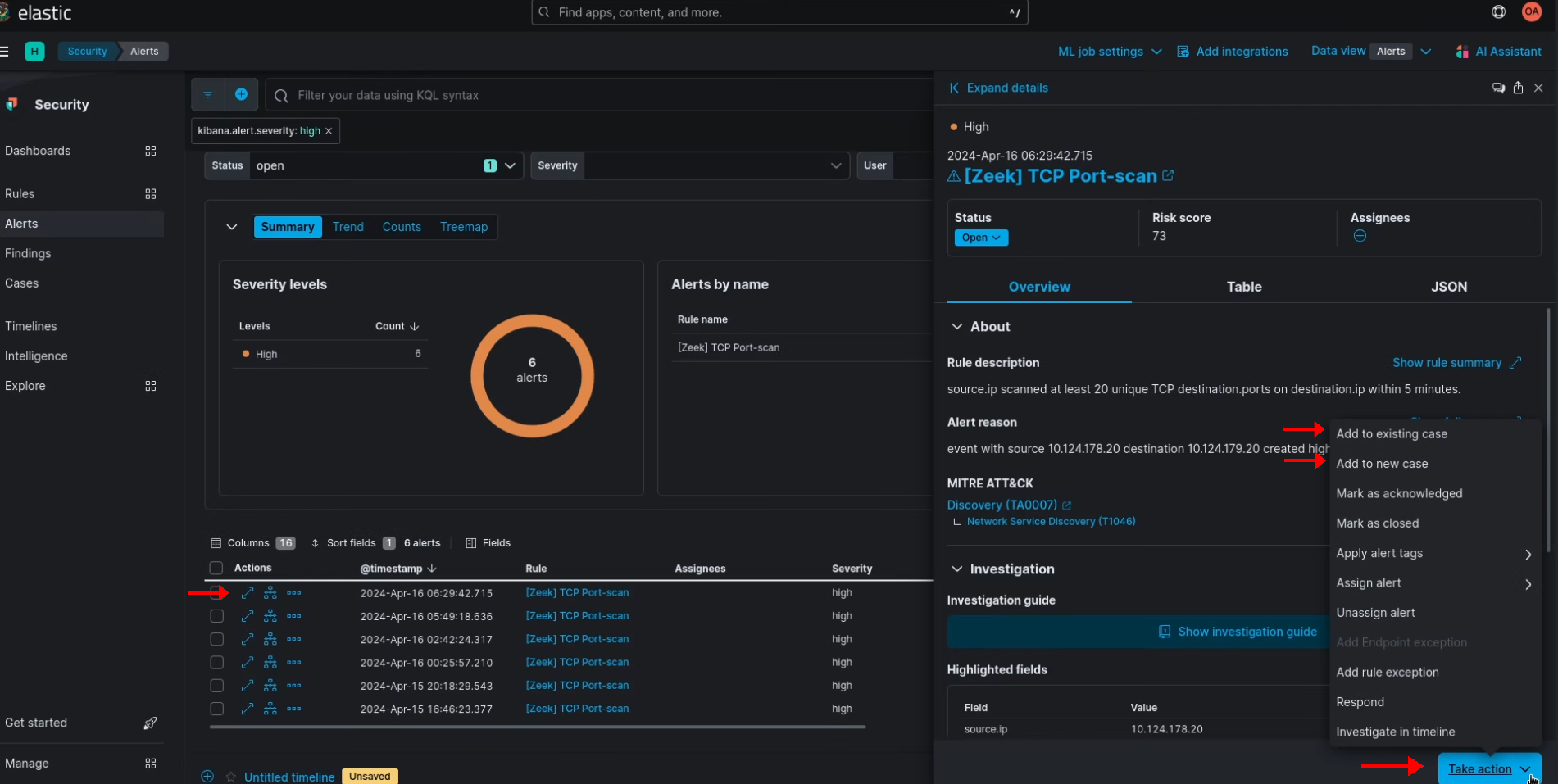
- Begin by expanding an alert
- Towards the bottom of the expanded section, select Take action and click Add to new case or Add to existing case
Naming a Case
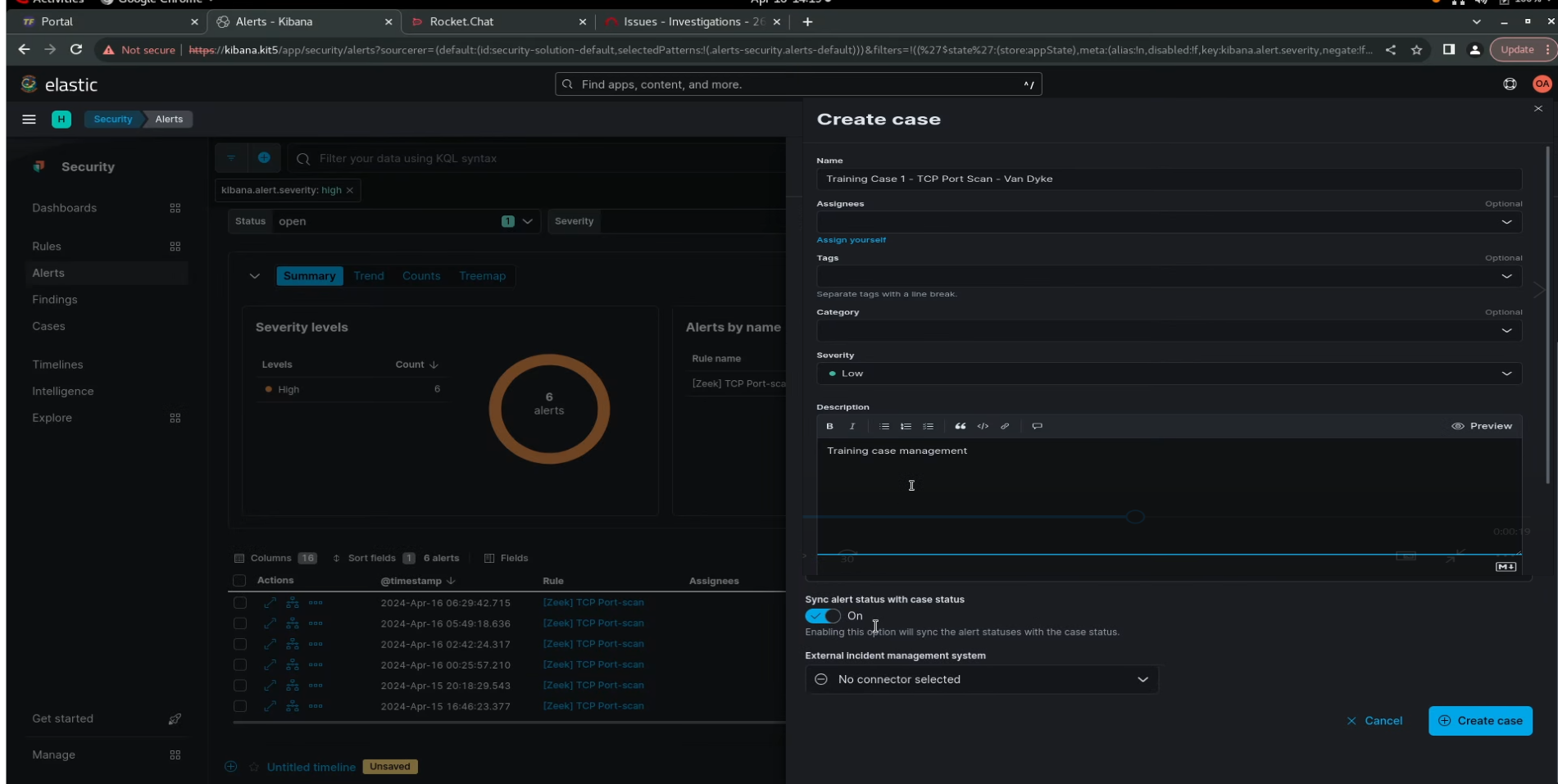
- Standard format for Elastic Cases will be:
- Analyst Last Name - Characteristic
- Can assign tags, specify a category, adjust the severity level, and add a description
Note
- To have comments and status from Cases impact alerts that are assigned to it, you must keep turn on Sync alert status with case status
- To have case tie into Redmine, you will have to select “Redmine” in the “External incident management system” section
- Do not want to select this when creating a new case, only when you are ready to escalate case as an incident to Redmine
Adding to existing Elastic Case
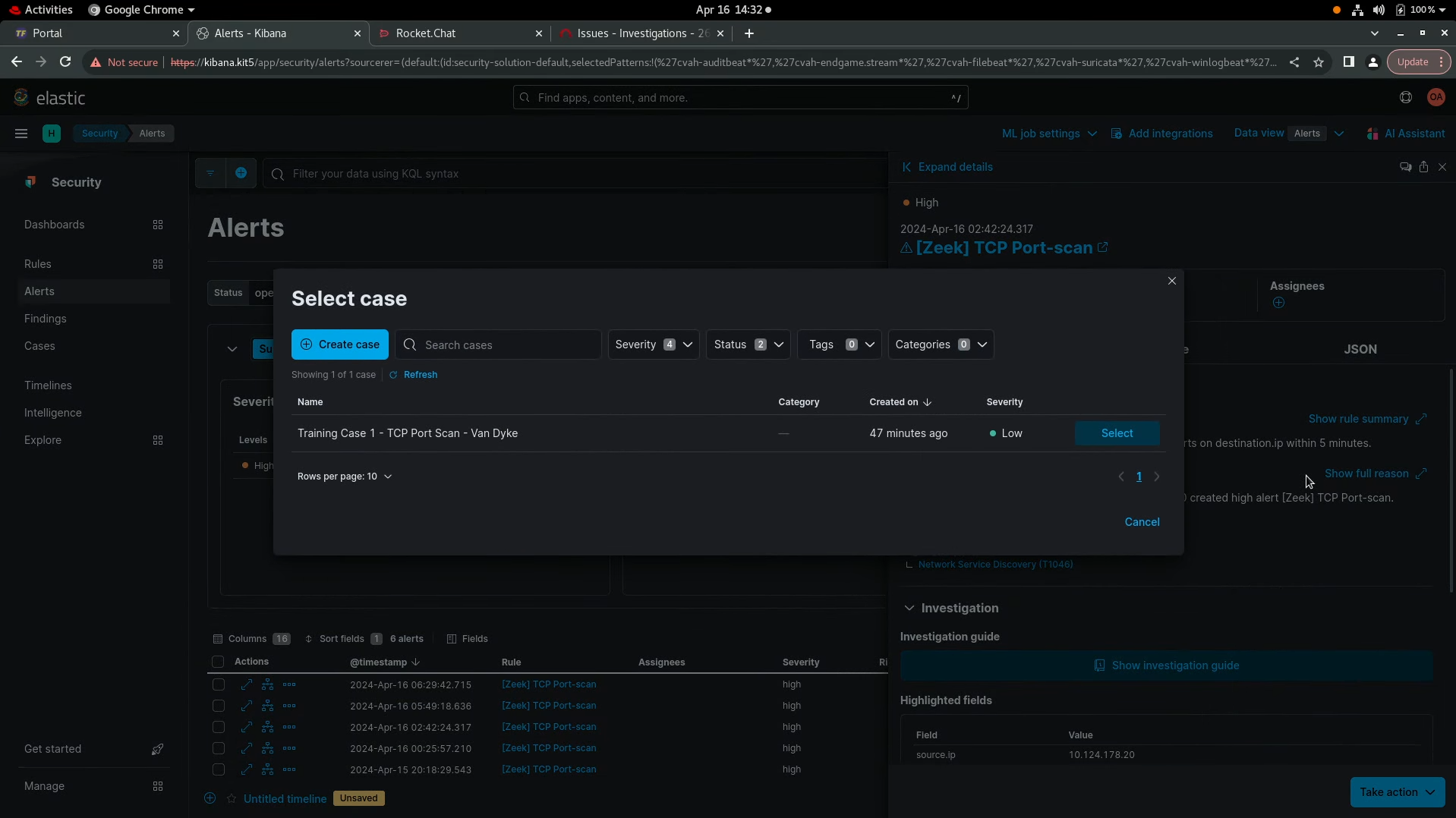
- If you are adding alerts to a pre-existing Elastic Case, make sure to appropriately select the case
- Even if you have only one case built, the alert will not automatically get added
Communication Standards
- How do we mitigate duplicated efforts/cases for same events?
- By notifying the team of alerts having certain characteristics going to a specific case
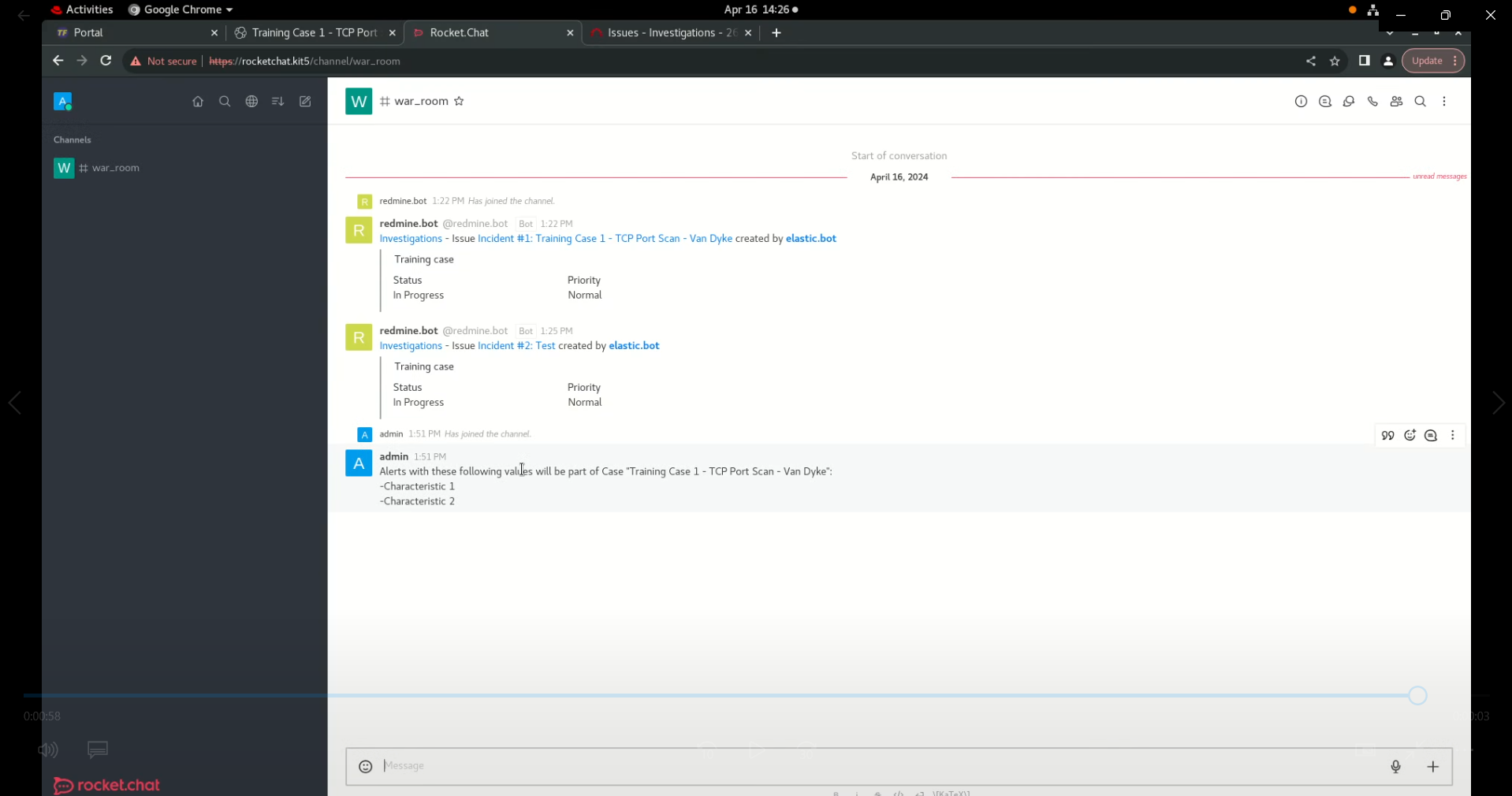
- In Rocketchat:
- Alerts with these following values will be part of Case A:
- X characteristics
- Y characteristics
- Z characteristics
- Alerts with these following values will be part of Case A:
Adding Artifacts
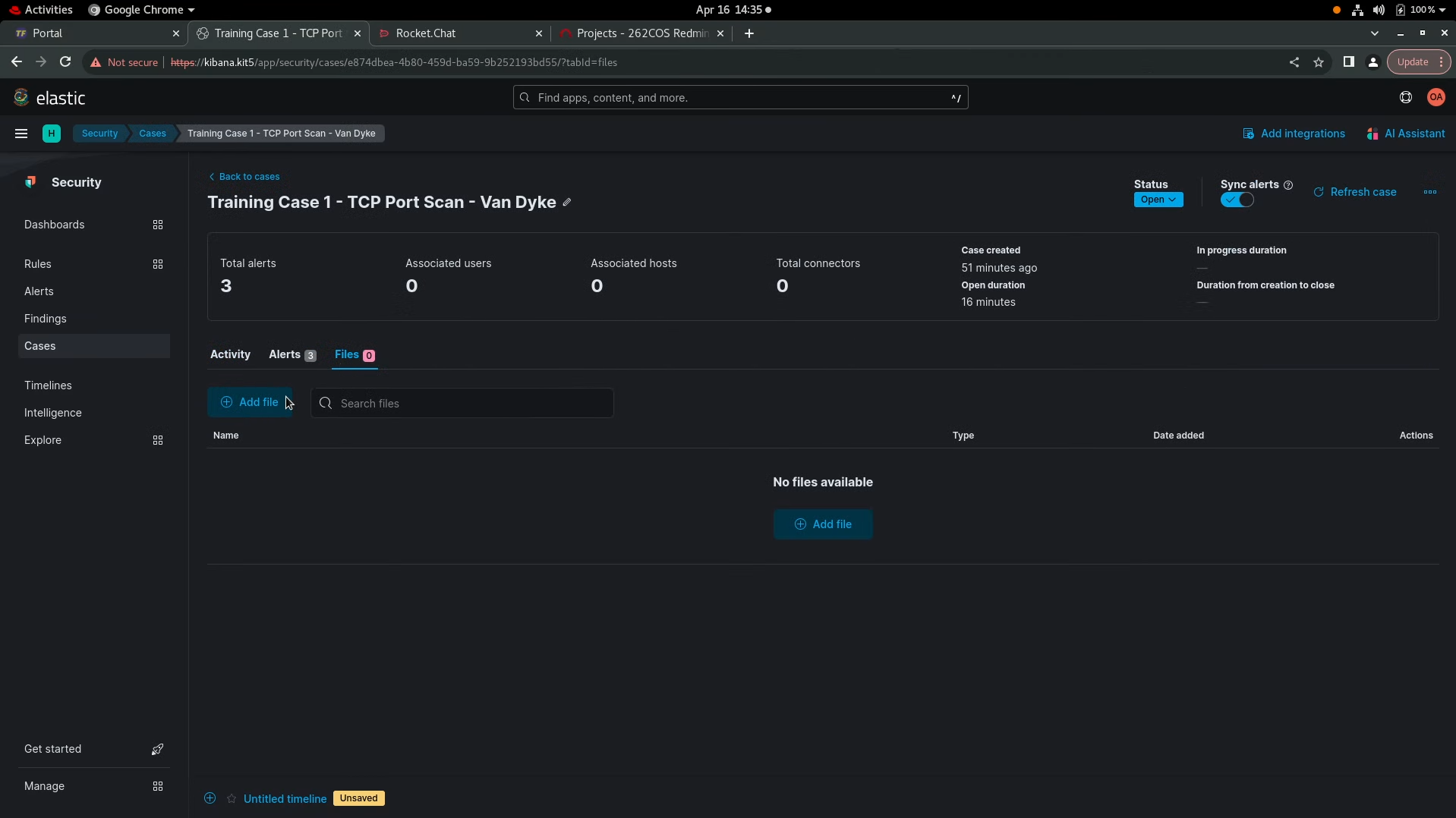
- Within desired case, select the Files tab
- Can add file from either of two spots on this page
- If adding an artifact that needs to be sandboxed, remove the executable ability of the data before uploading to Elastic
- Select “Upload”
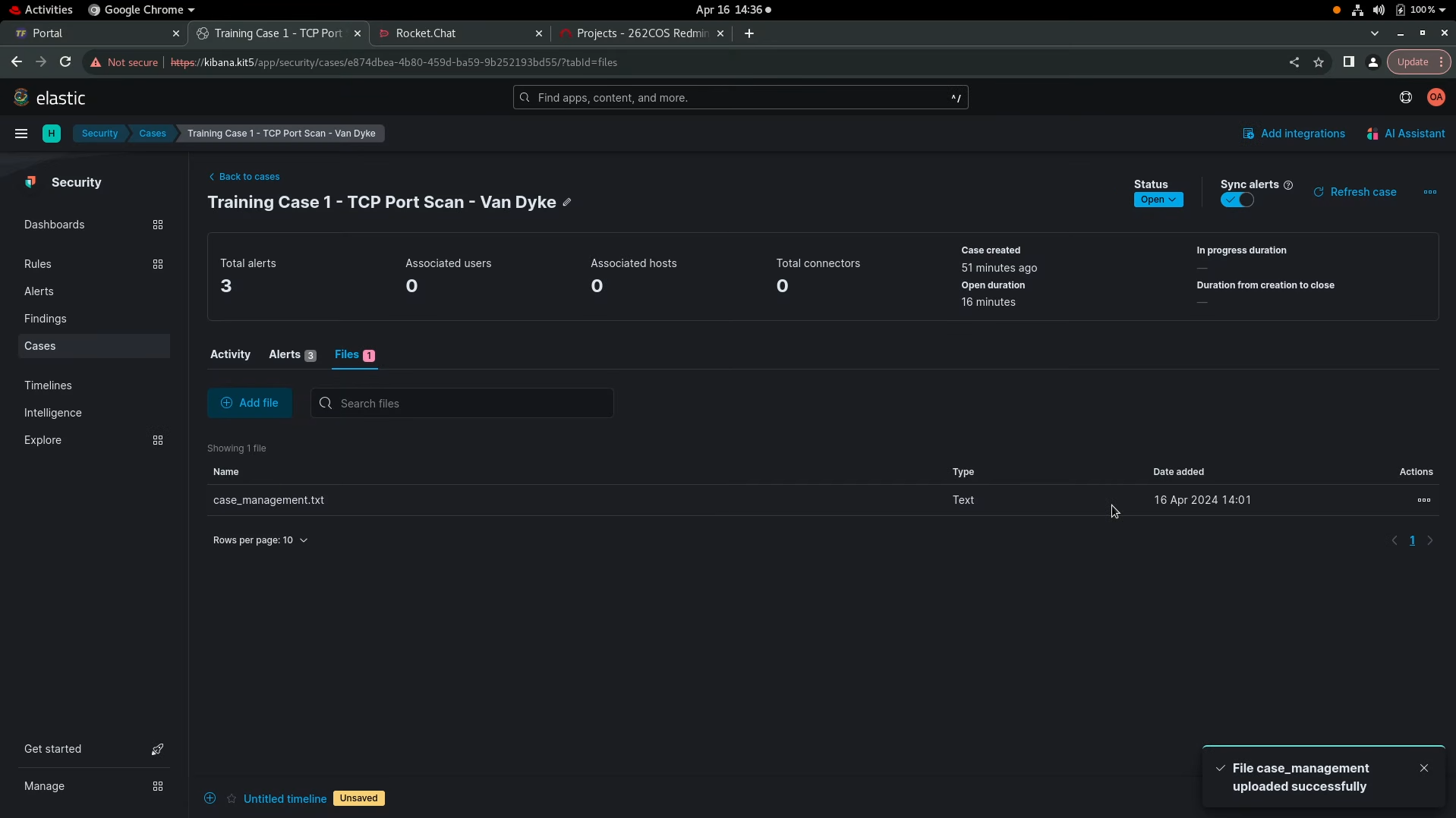
- Once back in Files tab after uploading, you are able to:
- Download file
- Copy the hash
- Delete file
RFI to Intel
- When requiring intel assistance:
- Input a comment in the Elastic Case specifying need to intel support
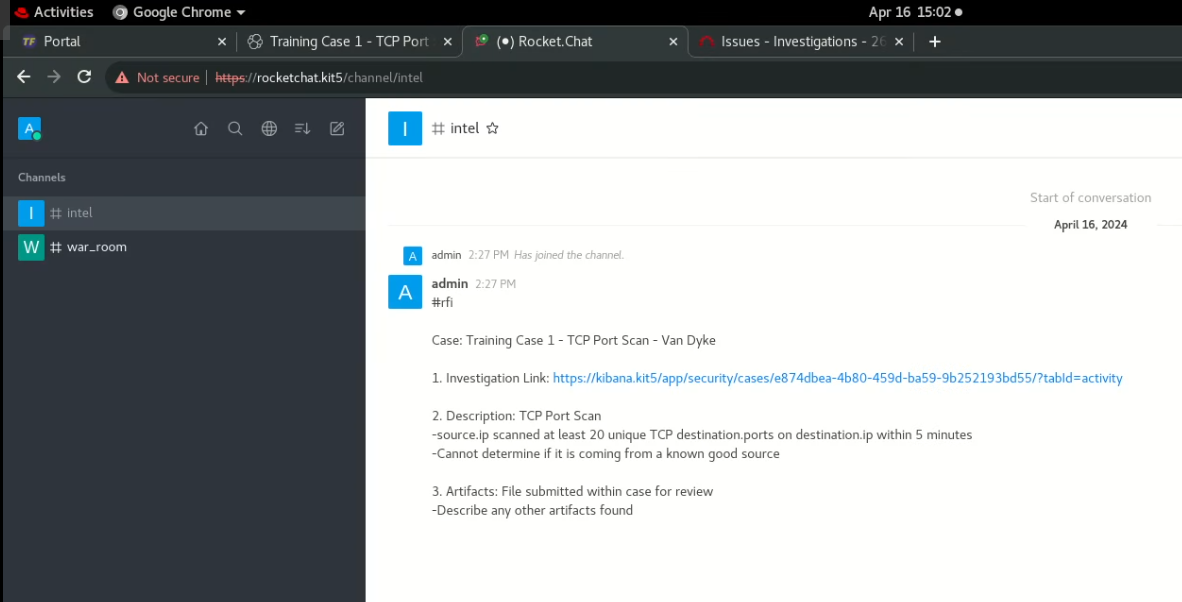
- Input a comment in Rocketchat channel #intel
-
Comment should look like the following:
#rfi
Case name from elastic
- Investigation Link
- Description
- Artifacts
- Request: Description of request
-
Closing Elastic Case
- When closing Elastic Case:
- Input comment in Elastic Case with result and actions take
- Ex: True Positive but Benign
- Ex: False Positive, no action required
- Ex: True Positive, escalating to Redmine
- Input comment in Elastic Case with result and actions take
- DO NOT CLOSE CASE THAT IS ESCALATED TO REDMINE UNTIL INVESTIGATION IS COMPLETE
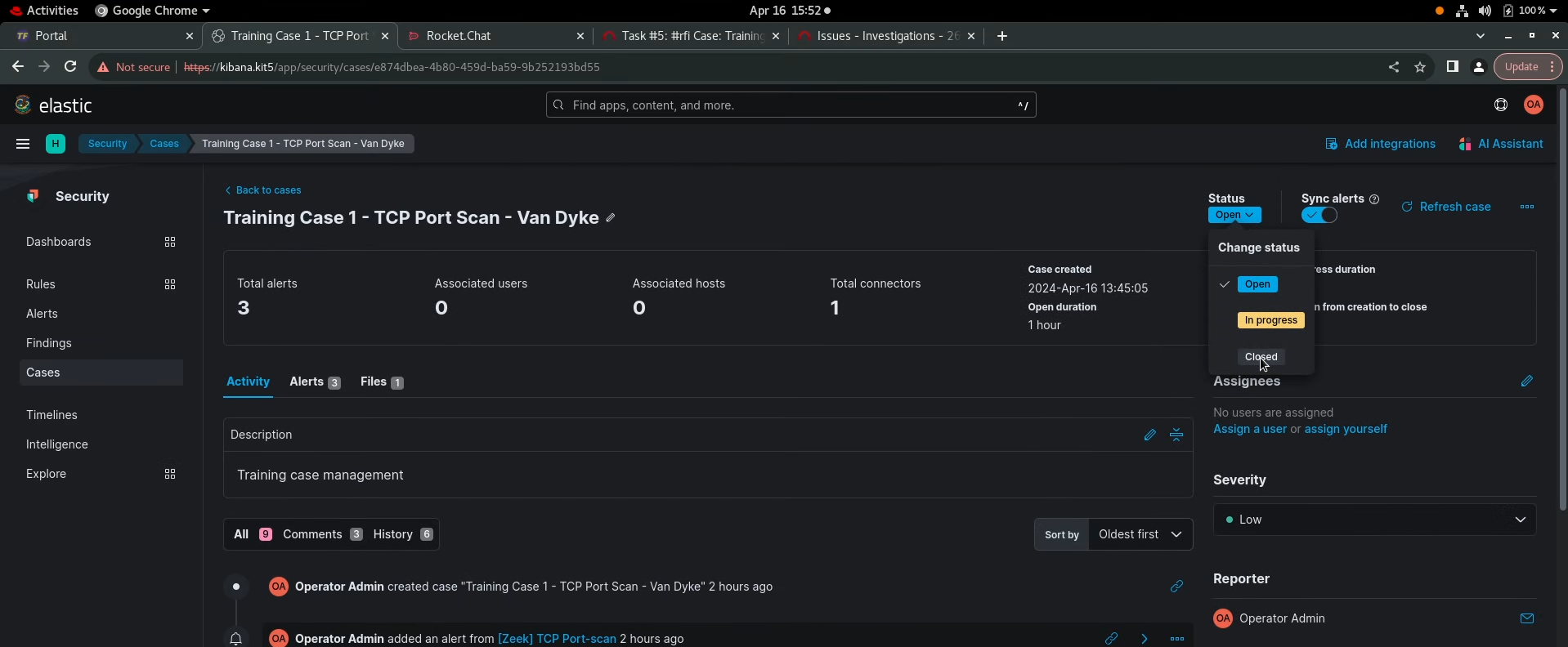
- Near top of case, select Status and then Closed
- Again, make sure that cases and alerts are synced